Backup and Restore
Parcelify allows you to backup, restore, and import shipping zones and rates.
This makes it possible to:
- Export your shipping configuration to a local file
- Import your locations settings from a backup
- Create rates in bulk (e.g. copy one location to another)
You may open the Backup and Restore feature by selecting one of your locations on the Parcelify home page, then clicking [Backup & Restore] in the top-right.
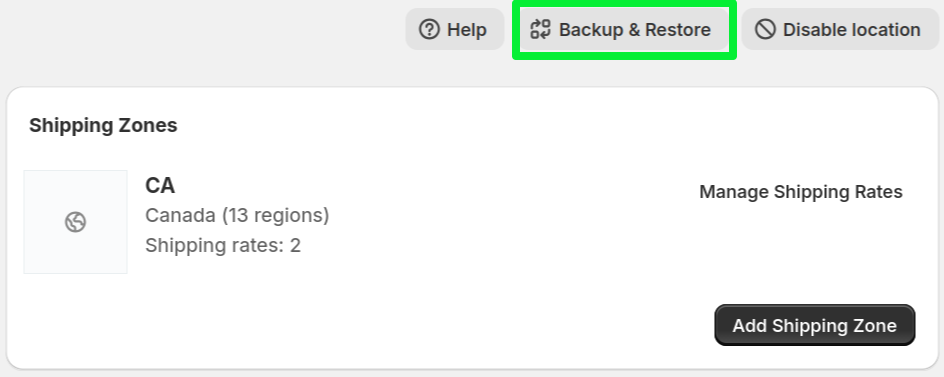
The Backups page
Upon clicking the Backup and Restore button, you will brought to the following options
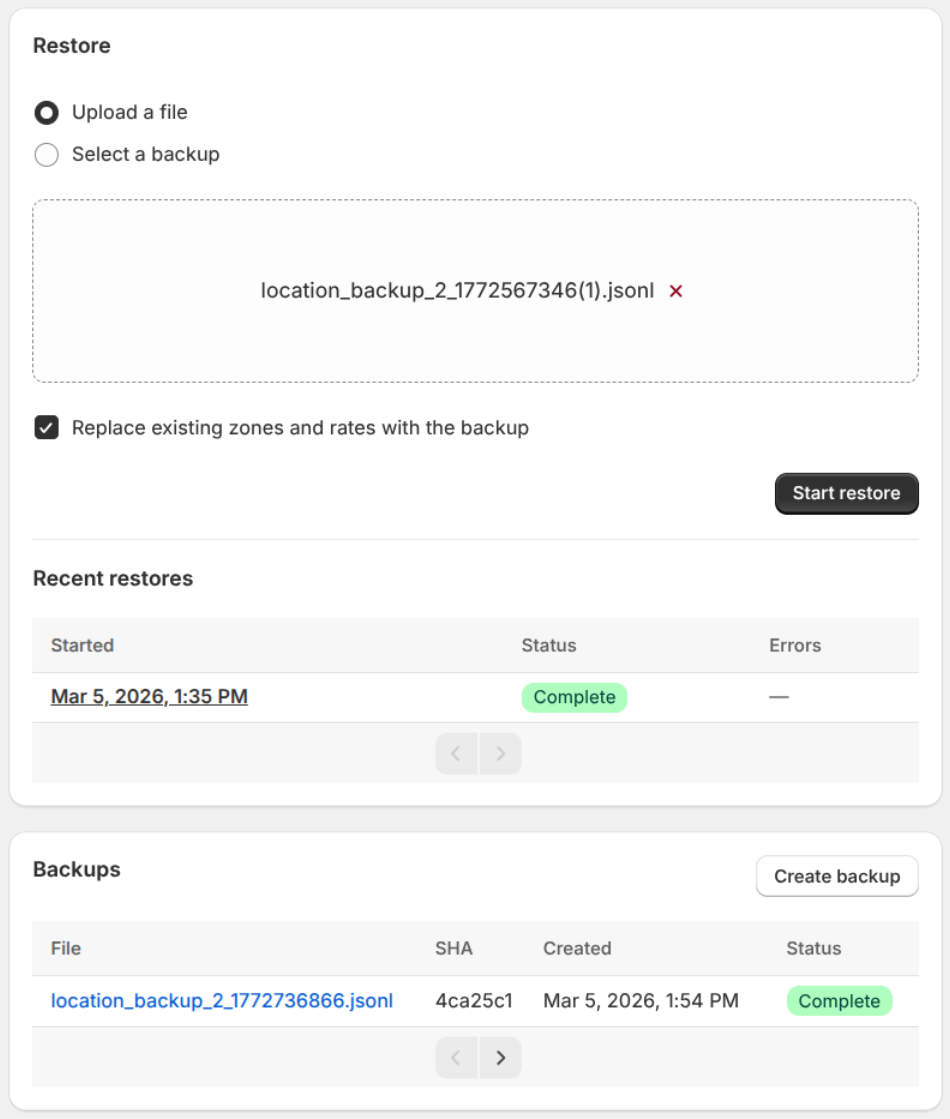
Restoring a backup
The first section on the Backups page is dedicated to organizing and restoring backups.
Upload a file - allows you to upload a previously generated backup from your computer. (You may also drag-and-drop the file from your computer into the shaded landing area)
Select a backup - Parcelify will retain up to 90 days worth of backups. If selected, this option will create a dropdown where you can choose one of your recent backups to restore from
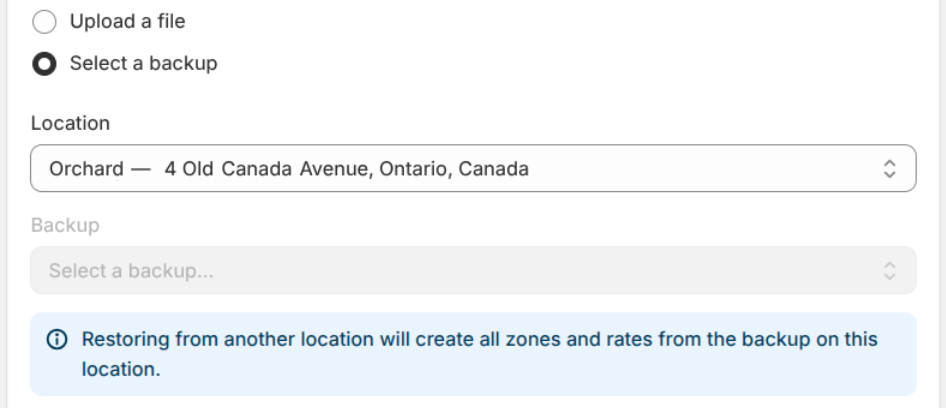
Location - upon selecting a backup to restore from, we will ask you what location you would like to restore to. Restoring a backup to a different location from the one it was created will effectively copy everything over to this new location
Replace existing zones and rates with the backup
By default, restoring a location backup is non-destructive. Any existing zones and rates are updated to match their configuration at the time of backup and any missing zones and rates are restored (more details here). By checking this box, you are indicating that all existing zones, rates, and prices should be removed and replaced by those in the backup
Once you have a backup uploaded or selected, you may click the [Start Restore] button to begin importing your backed up location.
You will see a new restore job with the current date and time appear under ‘Recent restores’. After a few minutes you will see the job change from pending to complete. You may also click on the job itself to review its status:
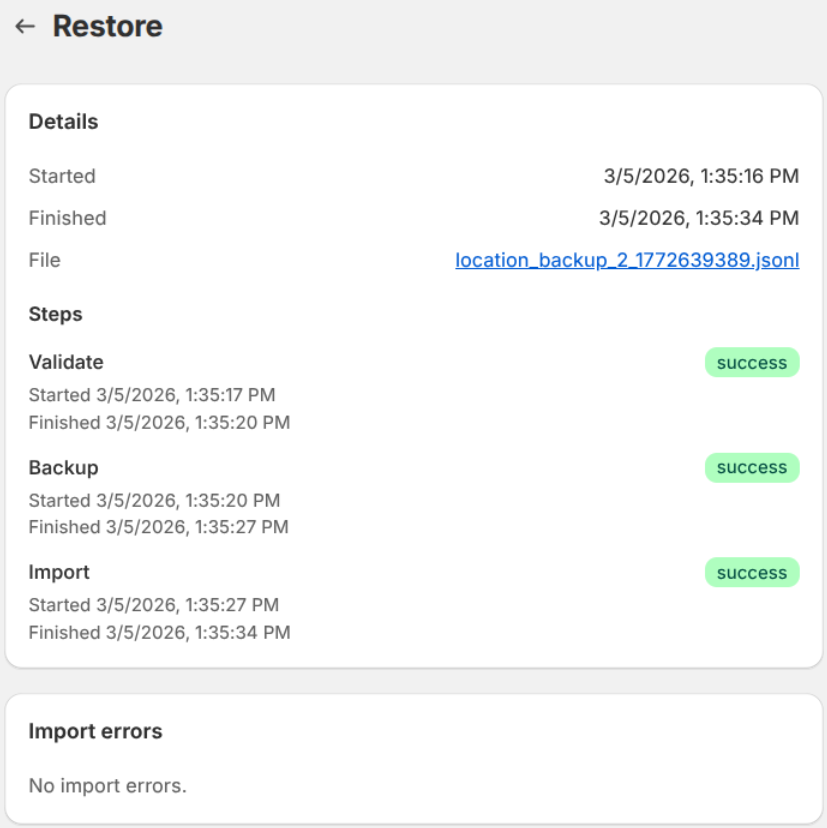
If the job ends up in error status, you may click it to see job details as well as what went wrong. (See also: Handling restore errors)
Creating a backup
To create a backup, simply click the [Create backup] button located in the bottom ‘Backups’ section.
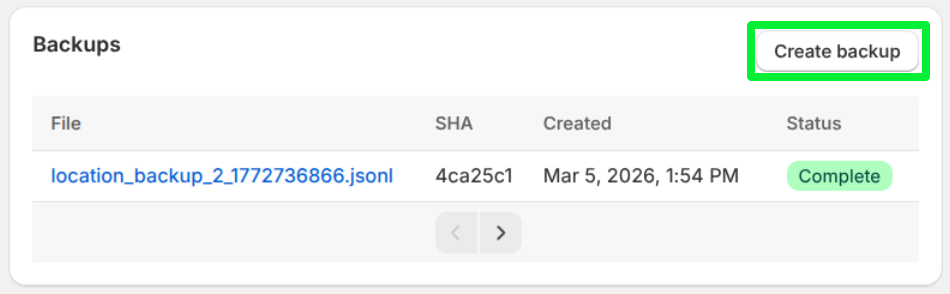
This will create a backup in Parcelify (stored for 90 days) and provide a file you can save locally.
Resolving differences between your live shop and backup
Any discrepancies between your backup file and shop are handled in the following way:
- If a Zone exists it will be reverted to the data in your backup
- If a Zone does not exist on your shop, it will be restored
Within an existing zone:
- If a rate exists it will be reverted to the data in your backup
- If a rate does not exist, it will be restored
With this approach your rates are only ever updated or created. By default, no zones or rates are deleted and any new rates you’ve created since your backup will be untouched.
Restore errors
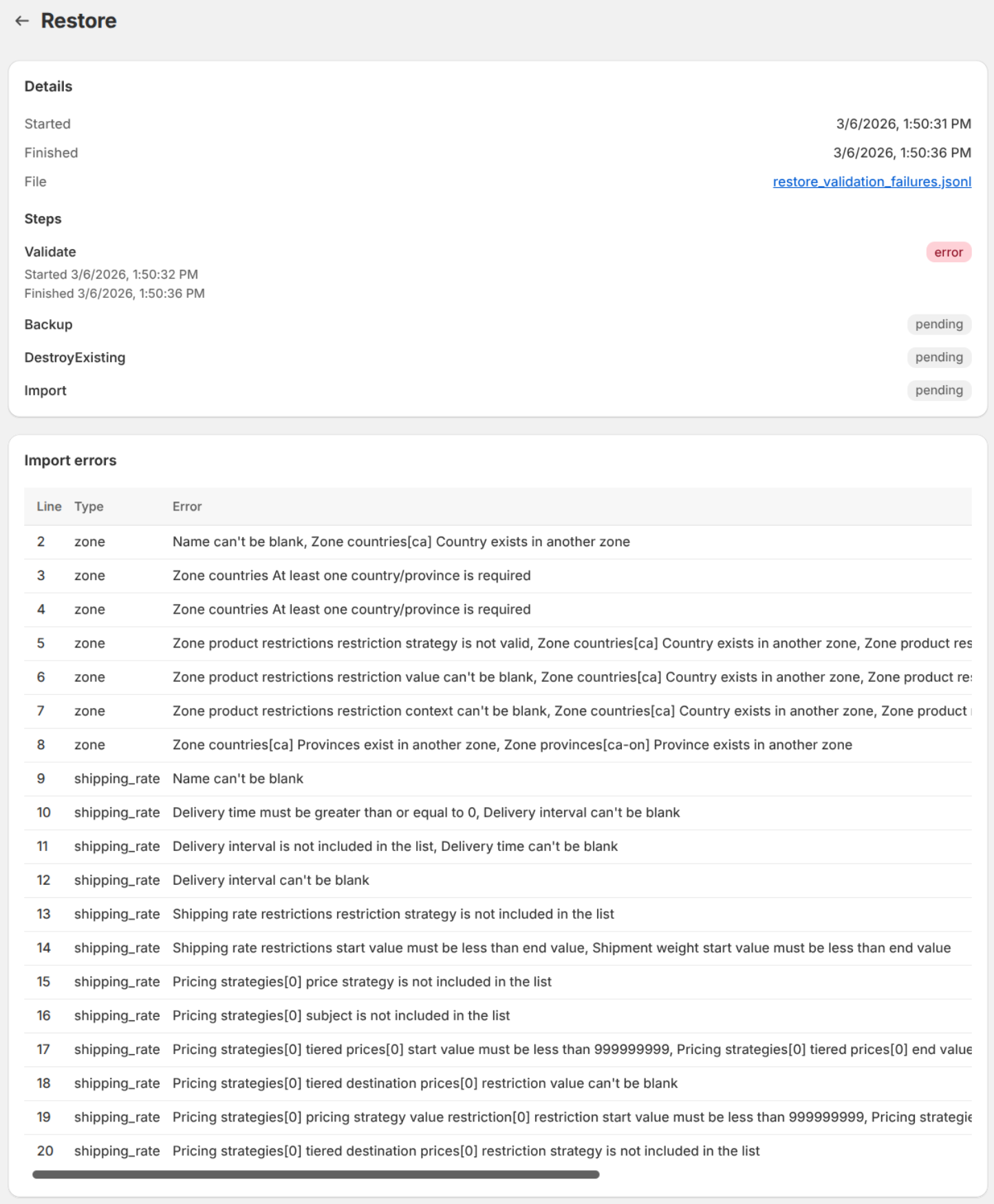
If your backup conflicts with your existing location or was edited in such a way it is no longer valid, Parcelify will let you know during the restore process. You may click on a restore job in error status to be brought to the restore details page:
Details
This section shows a job started timestamp, job ended timestamp, and provides you with a link to download the backup file initiated in this restore attempt.
Steps
This section will tell you if the import job is ongoing or, in the case of import errors, which specific step in the process failed.
- Validate - parcelify was unable to parse your import file or required data was missing from the file
- Backup - we automatically create a backup of your existing rate configuration, just in case something goes wrong
- DestroyExisting - this step only runs if you indicated you wanted a clean wipe of your existing zones and rates (so only the data in your backup gets restored)
- Import - The process that actually creates and (optionally) merges the backup zones and rates into your live shop
Import errors
All issues or conflicts with your backup data are listed here, along with a helpful line number corresponding to the validation error that occurred. You can correlate these errors with the expected backup data by reviewing the backup data format.
Recovering from import errors
Most import errors can be recovered by directly editing your backup and attempting to import it again. Here’s a few common patterns you’ll see and how to resolve them:
“Name” can’t be blank
Here Name could be any field. If our validation reports a missing field, scroll to the line number listed and make sure both the key and a value are present
Country exists in another zone
You will see this error when we detect a country is listed twice in your import file. You may also see this error paired with a province list if there are overlapping provinces. You can do a text-search to review individual zone lines, or search for the reported country code or province directly.
- For countries without states/provinces/districts - make sure the country is included in one zone only
- For countries with states/provinces/districts - make sure the provinces in each zone are unique
Note: Shopify and Parcelify generally follow the ISO 3166-2 listings for country and province codes. You can find all possible codes here: Wikipedia ISO 3166-2. Province/state/district codes are used without the country prefix. So USA, Colorado (US-CO)
“Name” is not included in the list
Here Name could be any field. Some keys have a list of expected values, this error indicates the text for “Name” on this line does not match this list. This will often occur on restriction types, which you can see a full list of here: Restriction types
If you run into a validation error that you are unable to resolve, please reach out to us via support@parcelify.com. We would be happy to review your import attempt and help you resolve any issues you encounter!
Editing your backup
This is considered an advanced topic and should only be done with the knowledge of how backups are created and restored. To learn more, please see our dev documentation here: Location Backup Format