To sign up, please reach out to us at protect@cleverfew.co.
Note: The Checkout Protection Toggle requires a Shopify Plus subscription. Only Plus shops can customize their Shopify checkout page. Shops on other plans can offer Protect as a shipping rate or a cart add-on instead. See Protect Settings for the available offer methods.
Checkout Protection Toggle
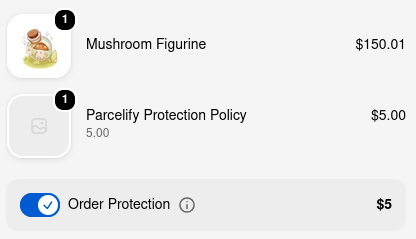
The Checkout Protection Toggle places a switch inside your Shopify checkout. Customers can use this toggle to add protection to their order without leaving checkout.
How it works
Switching the toggle on adds a Parcelify Protection Policy line item to the order. Switching it off removes it.
Adding a line item to the order is how Parcelify defines the checkout add-on offer method. Confirm this method is selected on the Protect settings page before you add the toggle. If your shop offers Protect as a shipping rate or a cart add-on instead, see Cart Protection Toggle or Protect Checkout Button.
Installing the toggle
- In your Shopify admin, go to Settings, then select Checkout
- Click [Customize] to open the checkout editor
- In the left side of the checkout editor, click the Apps icon
- Press the blue plus button next to Parcelify Protect Toggle
- Use the sidebar to choose where you want the block to be placed
- Click [Add Block]
- If you want to reposition it, use the up or down arrow in the editor
- Click [Save] in the top-right corner to publish the change