Quote access control
The Parcelify support team is happy to review your quotes and rates with you. To allow us access to your shipping quotes before (or during) a support conversation, follow the steps below.
Receiving an access request
During the course of a support conversation, Parcelify staff may request access to your rate requests and responses. This will come in the form of an email to the inbox associated with your Shopify store.
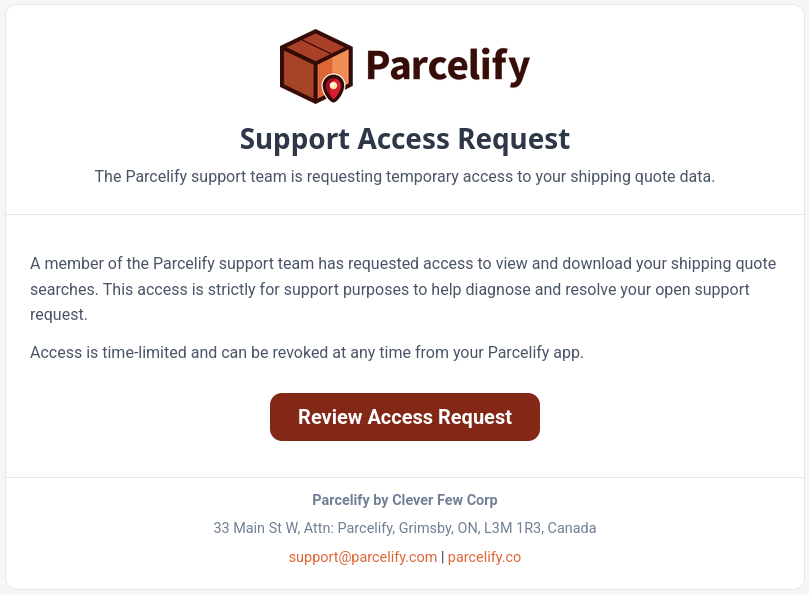
Clicking the [Review Access Request] button will open Parcelify in the Shopify Admin page associated with this email address and take you directly to the Access Control modal.
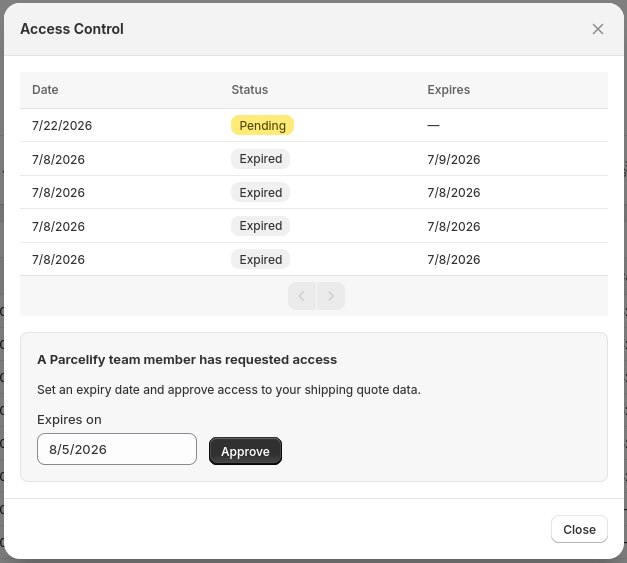
At the bottom of this dialog you will see “A Parcelify team member has requested access”. From here you can view and modify the date this access should expire, then accept the request by clicking [Approve].
Allowing access to your quotes
- Starting on the quotes page, click the [Access control] button, located in the top-right
- The quotes page can be found on your Shopify admin page, in the left hand sidebar, listed underneath Parcelify as ‘Quotes’
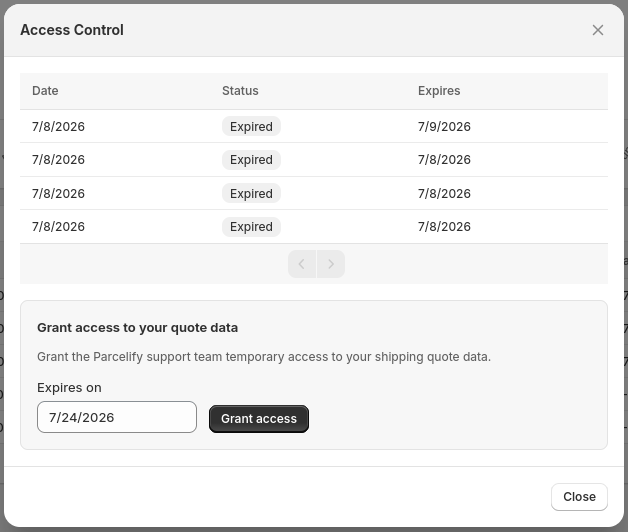
- The access control modal will appear. Enter a reasonable expiry date for quotes access, then click “Grant access”
- Let us know you have completed these steps along with your problem description and we’ll get to work
Revoking quote access
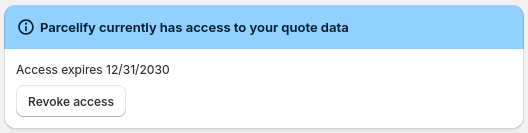
You may revoke access at any time by visiting the quotes page and clicking ‘Revoke Access’. (You can also revoke access from within the Access control panel.)
Downloading access logs
To review who has recently reviewed your logs and what responses they received, click Search History in the top-right of the page.

On the Search history page you will see a list of quote searches in reverse (descending) chronological order, along with a brief description of the search parameters used.
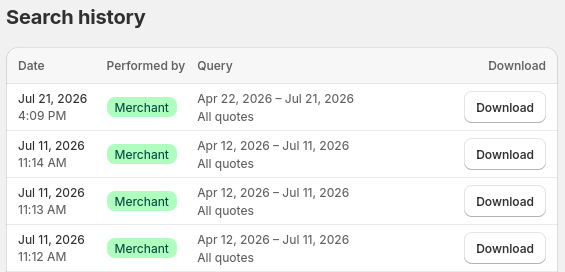
To see what quote information was provided for a given search, press its corresponding Download button.