
Documentation Tutorials Shipping quotes
Shipping quotes
When a customer is shown a shipping rate, whether in your checkout or with a shipping rate calculator, a shipping quote is created.
A shipping quote contains the information Shopify sends us, the information we have about your products at the time of the request, and the shipping rates we sent back to Shopify.
To access your quotes, open Parcelify in your Shopify Admin page, then click Quotes under our app listing
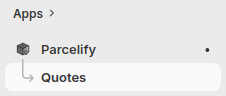
The quotes page
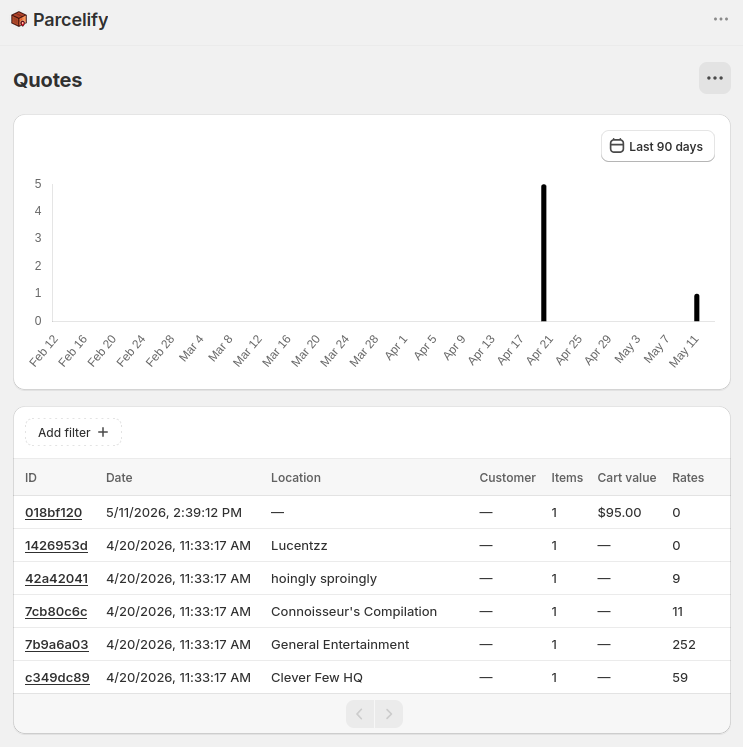
Upon clicking quotes, you will be taken to the Quotes page. Here you will see a timeline of recent requests and a searchable list of quotes starting with the most recent.
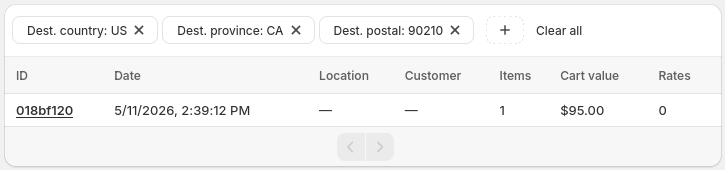
If you are looking for a specific quote, you can use the Add filter button above the quotes list to further refine what data is shown
Viewing a quote
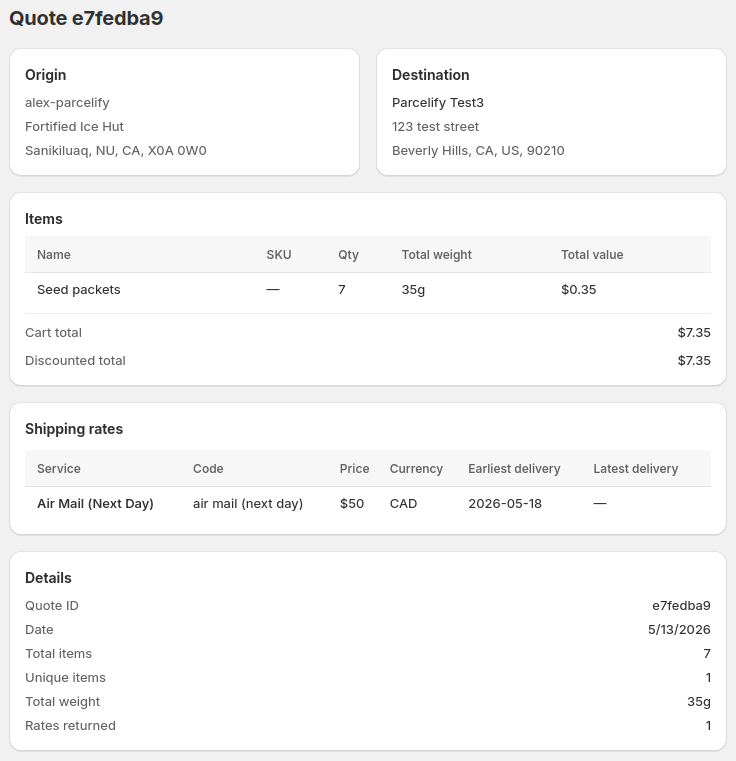
Each quote is assigned a unique ID. Clicking on this ID will allow you to view details about the corresponding rate request. This includes:
- The Origin (Location) Shopify associated with this order
- The Destination (shipping) address
- Detailed information about each product in the order
- A list of all rates associated with this checkout
- Additional information such as the quote ID, date generated, total vs unique items, total weight, and number of rates returned
- (not pictured below) Any internal error messages Parcelify generates, such as having no rates in a Location or zone
Troubleshooting
The correct rates are in my quote, but no rates appear at checkout
If rates are missing at checkout even though they are correctly attributed in your shipping quotes, you are likely facing an issue with your Shopify shipping and delivery settings. Here is how to check and fix them:
- Go to your Shopify Admin page
- Click on ⚙️ Settings
- Click on 🚚 Shipping and Delivery
- Click on your General Profile
- Scroll down to the ‘Shipping Zones’ category and - if you don’t see Parcelify - click [Add Rate]
- If you don’t see Parcelify click the [Add shipping option] button, select Use Carrier or app calculated, then select Parcelify from the drop-down
- Otherwise, click on the horizontal ellipses (…) to the right of Parcelify, then click Edit shipping option
- In all cases, you should now see something like this:
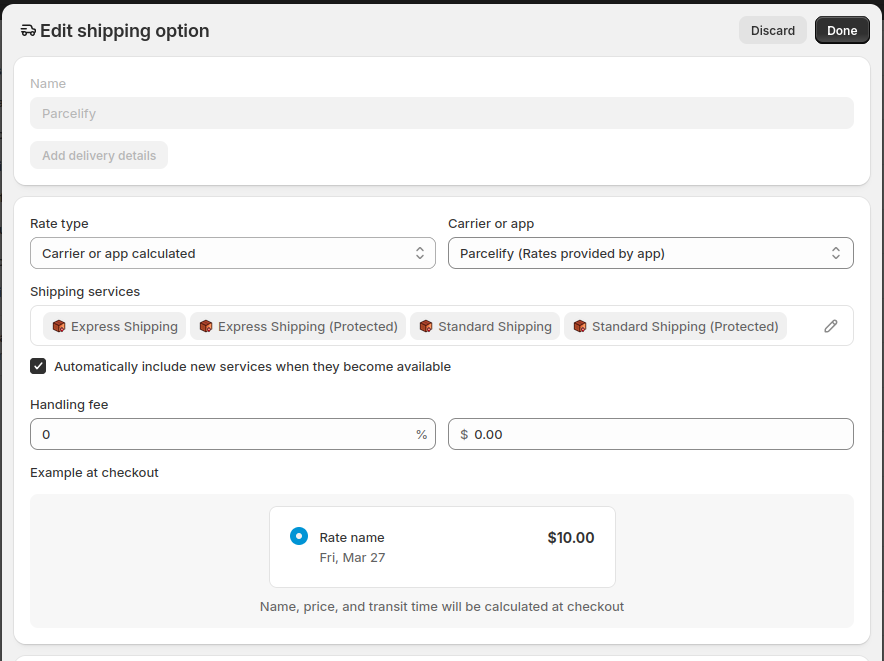
- Click the pencil icon on the right-hand side to edit available services
- Make sure ALL boxes you see are checked, then click Done
- Important: Double-check to make sure ‘Automatically include new services when they become available’ is checked
- Click [Done]
- Repeat for any other zones where you want to use our app
- [Save] this profile
- Finally, repeat for any other shipping profiles where you have (or wish to have) Parcelify enabled
Once everything is checked off your rates should not only show up, but update any time you make a change within Parcelify.
I see two (or more) quotes for a single checkout
Shopify will split checkouts when products are in stocked in separate locations or shipping profiles. We cover this topic in more detail here: Multi-location and profile issues
You may also see multiple requests if part of the order was eligible for subscription.
I don’t see all the products for this order in this quote
Products that are not marked as ‘physical products’ (in your Shopify product section) will not be sent to Parcelify to be rated.
Otherwise, it is likely your order was split. Shopify will split checkouts when products are in stocked in separate locations or shipping profiles. We cover this topic in more detail here: Multi-location and profile issues
The order total doesn’t match the combined price of products in the cart
When rating subscription products Shopify will report the total value of the order, even though only subscription products are present in the quote. This is a niche discrepancy, but good to know if you are relying on ‘before discount’ restrictions with subscription orders.