Uninstalling Universal Shipping
It is important to disable Parcelify Universal Shipping on the Parcelify front page before switching to Parcelify Shipping (CCS) or uninstalling the app. Failure to do so will leave behind extraneous Shopify rates that must be removed manually
If you already uninstalled Parcelify, click here for further instructions
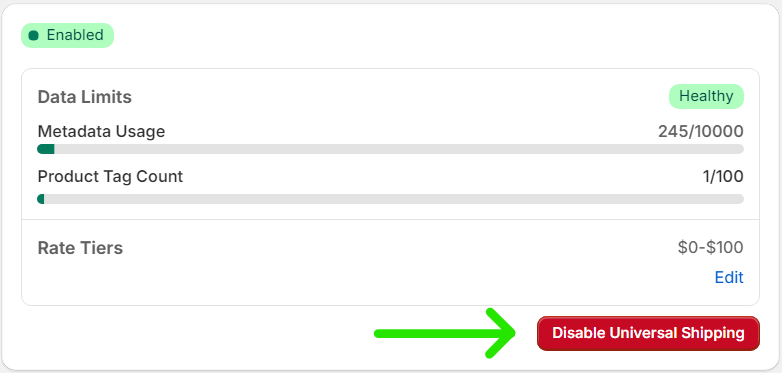
You can disable Universal Shipping from the Parcelify home page. Scroll down to the Universal Shipping section and click the bright red ‘Disable Universal Shipping’ button, as pictured below:
Manually removing Universal Shipping rates
If you uninstalled Parcelify before disabling Universal Shipping, you will need to manually remove leftover rate tiers. Here’s how:
- Open up your Shopify admin panel
- Click ⚙️Settings in the bottom-left
- Select Shipping and Delivery from the left-hand menu
- Click your first shipping profile
- Scroll down to the Shipping zones in this profile
- Parcelify rates will be named “Rate name” (Tier #). So if you had a rate called Albany shipping, you would be looking for a series of rates named “Albany Shipping (Tier 1), Albany Shipping (Tier 2), and so on
- Click the ellipses ( … ) next to the rate you would like to remove
- Select
Deletefrom the dropdown - Continue working through your zones in this profile and deleting rate tiers
- Click Save, in the top right of the shipping profile page, to commit your changes
- Repeat these instructions from step 4 for any other profiles you use