This feature is currently in private beta and only available to US customers.
To sign up, please reach out to us at protect@cleverfew.co.
To sign up, please reach out to us at protect@cleverfew.co.
Uninstall Protect
To disable Parcelify Protect:
- Navigate to the Parcelify app in your Shopify admin area
- Once opened, select Settings from the left-hand menu
- In the Parcelify Protect section of your Parcelify settings, click Disable Protect
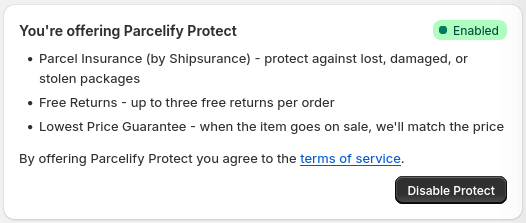
Important: Disabling Protect hides any components you’ve installed, but it does not remove them from your storefront or checkout. Follow the instructions below to remove any leftover Protect components.
Remove storefront components
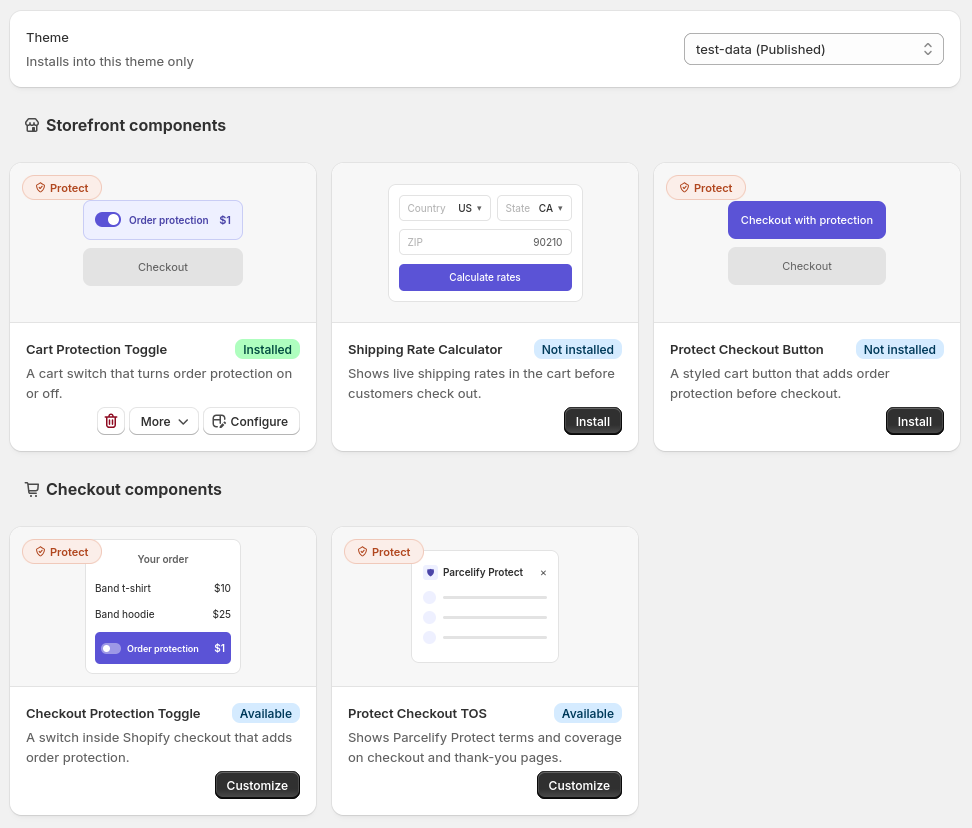
If you installed the Cart Protection Toggle or Protect Checkout Button on your theme, follow the instructions below to remove them:
- Open Parcelify in your Shopify admin
- Select Storefront Components from the left-hand navigation menu
- Find the installed Protect component in the Storefront components section
- Click delete (the red trash can button)
Remove checkout components
If you installed the Checkout Protection Toggle or Protect Checkout TOS, follow the instructions below to remove them:
- In your Shopify admin, go to Settings, then select Checkout
- Click [Customize] to open the checkout editor
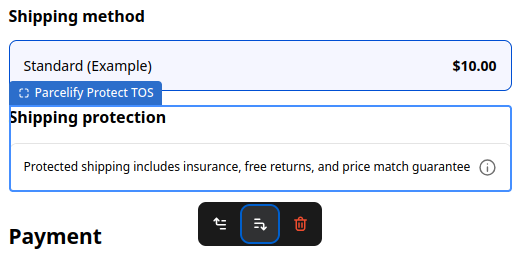
- Find the Parcelify block you added
- Click delete (the red trash can button) below the block
- Click [Save] in the top-right corner
If you decide to offer Protect again later, see Settings to re-enable it and choose how it’s offered.